
Parental Control Password for IPTV: How to Protect Your Kids in 2026
Updated November 2026 · 5 min read
A parental control password for IPTV is one of the simplest ways to keep children away from content that is not meant for them. IPTV gives you thousands of channels and a huge on-demand library, which is great for adults and families, but it also means kids can stumble onto the wrong category with a single tap.
This guide explains how parental controls work in IPTV player apps, how to set a password step by step, how to lock or hide categories and what else you can do at home. It also shows how support at IPTV Stream Plus can help you set it up.
Why You Need Parental Controls on IPTV
Traditional TV has ratings and channel locks built into the set-top box. With IPTV, the controls live inside the player app you use. That means you set them up yourself, and the settings depend on the app and device.
A parental control password for IPTV prevents anyone without the code from opening locked categories or changing the settings. It is an easy habit that gives you peace of mind, especially in households with young children or teenagers.
How Parental Control Works in IPTV Apps
Most modern IPTV player apps offer one or more of these tools. Their names differ, but the idea is the same.
- Password or PIN lock: a code needed to open protected areas.
- Locked categories: channels or groups hidden behind the code.
- Hidden categories: groups removed from the list altogether.
- Settings protection: the code is needed to change app settings.
- User profiles: separate profiles for adults and children, in apps that support them.
Check your app settings for a section called Parental Control, Security or Content Lock.
Setting Up Profiles for Different Family Members
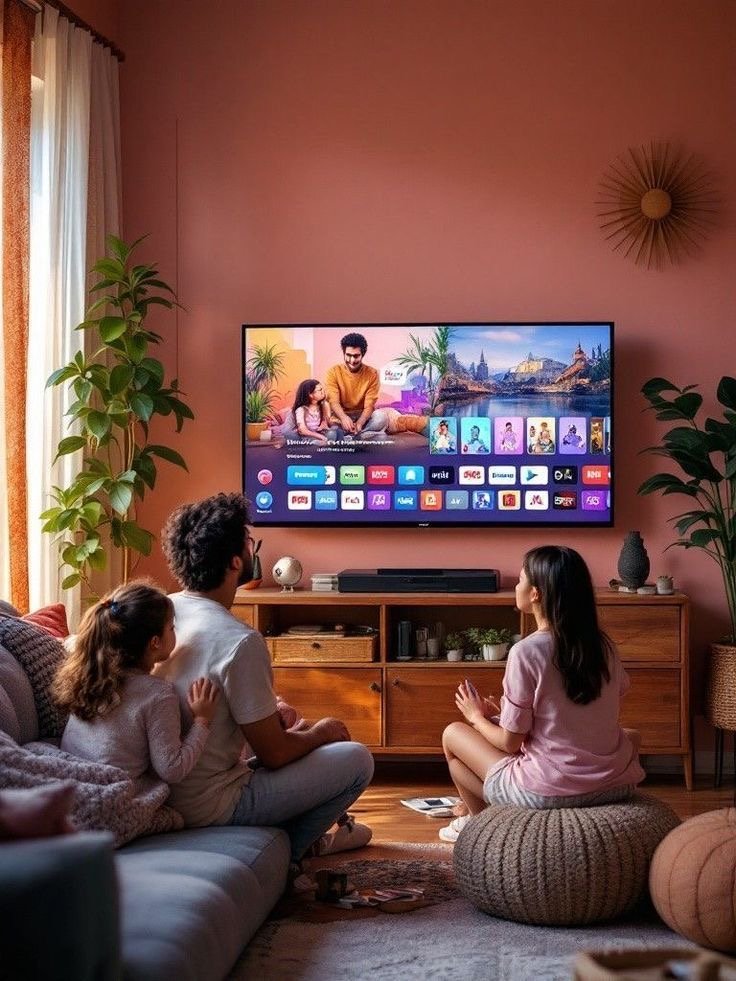
If your player app supports profiles, create one for adults and one for children. The adult profile keeps full access protected by the code, while the child profile shows only the channels and categories you select.
Even without profiles, you can reach a similar result by building a favorites list of age-appropriate channels and using it as the default view. Pair this with the password lock and your family gets a safe, simple home screen.
Review the lists every few months. Children grow, interests change and new channels may need to be added or removed.
How to Set a Parental Control Password for IPTV in Six Steps
Step 1: Open your player app settings
Look for Settings, then Parental Control or a similar option. On some apps it sits under General or Security.
Step 2: Create a password or PIN
Choose a code that children cannot guess. Avoid birthdays, simple sequences or the same code you use for other devices.
Step 3: Confirm the code
Enter the code again and write it down somewhere safe, away from the TV.
Step 4: Choose what to lock
Select the categories or channels you want to protect. Adult categories are the usual choice.
Step 5: Test the lock
Return to the channel list and try to open a locked category. The app should ask for the code.
Step 6: Review regularly
Check the settings after app updates, because some updates reset options.
What to Do If a Child Learns the Code
It happens in many households. If you think a child has learned your code, change it immediately and review which categories are locked. Choose a code that is not related to anything a child can easily observe, such as a birthday or house number.
Consider also limiting screen time and using device-level controls on tablets and phones. IPTV app settings work best together with the controls built into the device itself.
Finally, talk openly. Children who understand why certain content is restricted are less likely to try to bypass the rules, and they are more likely to come to you when they see something confusing.
Plans That Work With Parental Controls
Parental control features come from your player app, so they work with any of our plans. All plans include live TV, sports and VOD, with HD and 4K where available, and you can ask for a free trial to set everything up first.
- Live TV, sports and VOD
- HD and 4K where available
- WhatsApp support
- Live TV, sports and VOD
- HD and 4K where available
- WhatsApp support
- Live TV, sports and VOD
- HD and 4K where available
- WhatsApp support
What Every Plan Includes
- 45,000+ Live TV Channels
- 170,000+ Movies & Series On-Demand
- Premium Channels & Pay-Per-View (PPV) where legally available
- Catch-Up TV & Electronic Program Guide (EPG)
- 4K / Ultra HD Streaming Quality
- 99.9% Server Uptime for Reliable Viewing
- Anti-Freeze Technology for Smooth Playback
- Compatible with All Devices (Smart TVs, Android, iOS, Windows, etc.)
- 24/7 Technical Support
- Catch-Up / EPG for All European Channels
The package figures above are marketing package specifications and may vary from the broader service catalog depending on the plan, content availability, and technical conditions.
The 1-month plan costs $15.99. The 3-month plan costs $29.99 (about $10.00 per month), the 6-month plan costs $39.99 (about $6.67 per month), and the 12-month plan costs $59.99 (about $5.00 per month). You can start with a free trial before you choose.
Tips for Choosing a Good Code
A strong code is easy for you to remember and hard for children to guess. Use four to six digits that do not appear in family dates or phone numbers. Change the code from time to time, especially if you suspect someone has seen it.
Do not share the code with children unless you have discussed what it protects. And keep the password out of sight, not on a sticky note attached to the TV.
Other Ways to Keep IPTV Child-Friendly
Passwords are only one tool. You can also create a favorites list that contains only kid-friendly channels and set that list as the home screen on the family device. Keep adult-oriented categories hidden on shared screens.
Use separate devices where possible, such as a tablet for kids and a main TV for adults. Talk with children about what they watch and why some content is restricted. For more device tips, read our guides to the best IPTV player and IPTV Firestick setup.
Getting Help With Setup
If you cannot find the parental control setting in your app, message our team on WhatsApp. Tell us your device and app name, and we will guide you step by step. Support is available 24/7, and every plan includes a 30-day money-back guarantee as explained on our legal page.
Frequently Asked Questions About Parental control password for iptv
What is a parental control password for IPTV?
It is a code in your IPTV player app that locks categories or settings so children cannot open protected content without the code.
Where do I find parental control in my IPTV app?
Look in Settings for Parental Control, Security or Content Lock. The name varies by app.
Can I hide adult categories completely?
Many apps let you hide or lock categories. Hiding removes the category from view, while locking asks for a code when someone opens it.
Does parental control work on Firestick and phones?
Yes. The feature depends on your player app, so it works on any device where the app supports it, including Fire TV, Android and iOS.
Can you help me set it up?
Yes. Message us on WhatsApp with your device and app name, and we will guide you.
How much does IPTV Stream Plus cost?
Plans cost $15.99 for one month, $29.99 for three months, $39.99 for six months and $59.99 for twelve months.
Final Thoughts on Parental Control for IPTV
Setting a parental control password for IPTV takes a few minutes and protects your family for months. Pick a strong code, lock the right categories, test the lock and review it after updates.
If you want help, message IPTV Stream Plus on WhatsApp. You will get live TV, sports, movies and series, 24/7 support and a 30-day money-back guarantee.
Message us for a free trial and see it on your own screen.
💬 Start on WhatsAppImportant: IPTV players are applications used to play content. IPTV technology is legal, but the legality of specific channels and content depends on licensing and local laws. Channel availability, streaming quality, and app features may vary by device, location, subscription, and internet connection. Customers should only access content they are legally entitled to view.
Quick Recap: Parental Control Password For Iptv
Whenever you compare options, keep parental control password for iptv at the center of your checklist. A clear understanding of parental control password for iptv saves you money and frustration. Many viewers ask us about parental control password for iptv before they subscribe. Our support team can walk you through parental control password for iptv step by step. If parental control password for iptv matters to you, test the service on a real device first. Good advice on parental control password for iptv always starts with your internet speed and your device. Remember that parental control password for iptv looks different for every household. That is why we explain parental control password for iptv in plain language. Before you decide, read this guide on parental control password for iptv once more.
Ask yourself how parental control password for iptv fits your daily viewing habits. With the right setup, parental control password for iptv becomes simple for everyone. Our team keeps this parental control password for iptv guide updated as things change. For most US households, parental control password for iptv is the first question to answer. Take a moment to review parental control password for iptv again before you pay. Whenever you compare options, keep parental control password for iptv at the center of your checklist. A clear understanding of parental control password for iptv saves you money and frustration. Many viewers ask us about parental control password for iptv before they subscribe.